Why Computer Use and Chrome Integration Fail When Codex Runs in WSL
The short answer
Even when the Codex window is running on Windows, Computer Use or Browser Use can report wsl-disabled when the agent itself runs in WSL. The Chrome plugin also depends on the Windows desktop app and a native messaging host, so the Codex CLI inside WSL cannot use it by itself.
- The Codex CLI in WSL does not include desktop-only Computer Use or the Chrome plugin
- The Windows desktop app can still lose GUI capabilities when its agent runs in WSL
- Reinstalling only the Chrome extension does not fix a WSL runtime boundary
- Run the Codex agent natively on Windows when you need Computer Use or Chrome integration
This article reflects the official documentation and a public Windows-plus-WSL report in the OpenAI repository as of July 28, 2026. Availability can also depend on region, plan, organization policy, rollout, and app version.
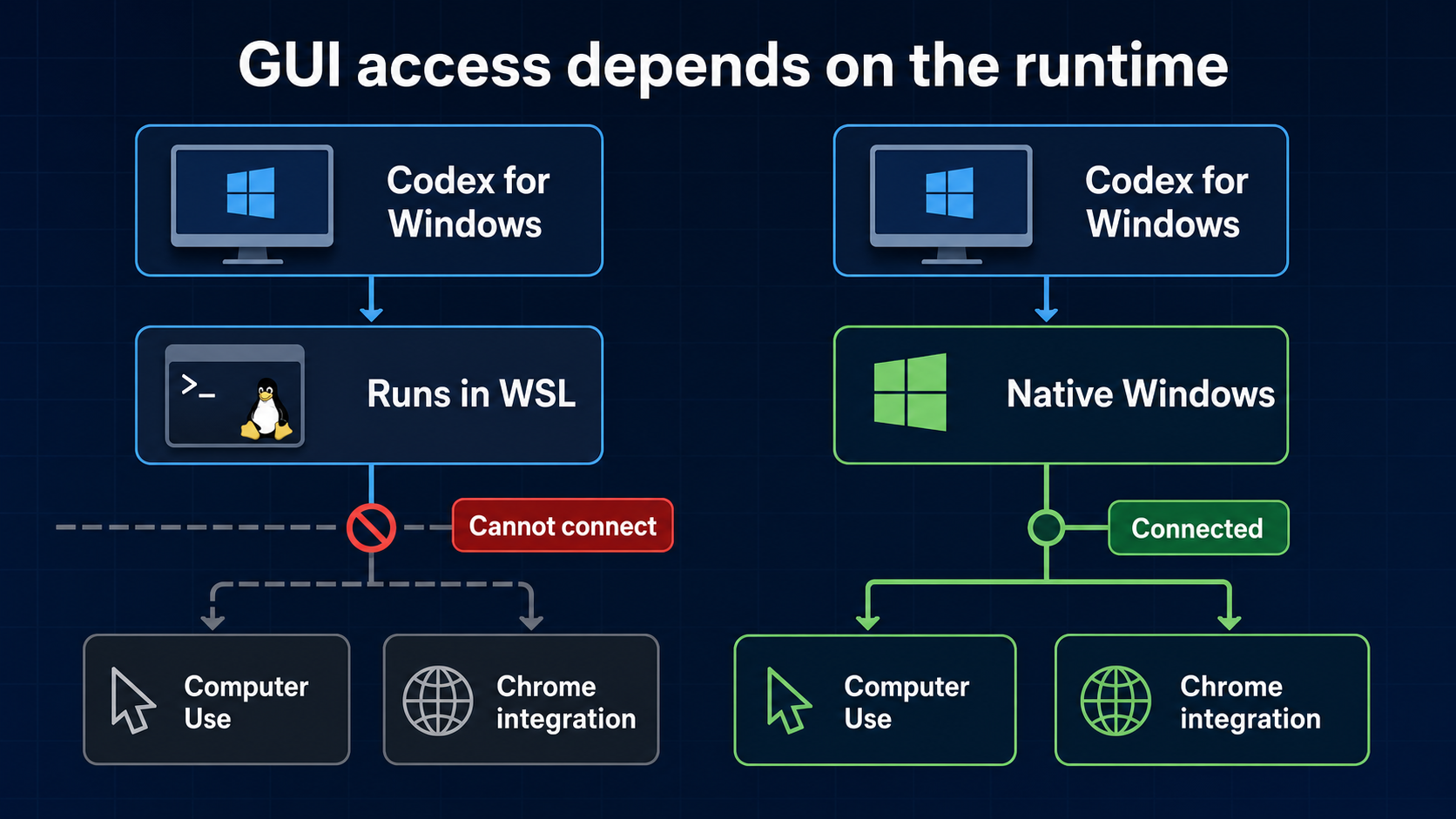
The Windows app window and the agent runtime are separate
Codex for Windows can run its agent natively on Windows or inside WSL2. According to the official WSL guide, selecting WSL makes Codex run in the Linux environment instead of the native Windows sandbox. The change takes effect after restarting the app.1
The app window can therefore be visible on Windows while the process that runs commands and tools is a Linux process inside WSL.
| Configuration | Agent runtime | GUI integration |
|---|---|---|
| Codex CLI inside WSL | Linux / WSL | Desktop-only capabilities are unavailable |
| Codex for Windows with WSL enabled | Linux / WSL | Computer Use or Browser Use can be disabled |
| Codex for Windows in native mode | Windows | Available when all other requirements are met |
The important question is not where the window appears. It is which operating system runs the Codex agent.
wsl-disabled is not a Chrome reinstall error
A public report in OpenAI's Codex repository describes Computer Use and Browser Use becoming unavailable when the Windows desktop app ran its app-server inside WSL.2 Its availability result included:
available=false
reason=wsl-disabled
The same report showed that Windows Computer Use helper paths were unavailable and the native pipe could not start. The Windows desktop host, the app-server in WSL, and the native Windows GUI helper were separated by a runtime boundary.
Codex for Windows could start the Codex app-server inside WSL, but that runtime could not reach the Windows GUI helper on the other side of the boundary.
The issue is a user report, not a permanent product guarantee. However, when logs contain wsl-disabled, check the agent runtime before troubleshooting the Chrome extension or website permissions.
The Codex CLI in WSL cannot provide Computer Use
Computer Use is a desktop capability that lets ChatGPT Work or Codex operate graphical interfaces on macOS or Windows. The official guide says to install the Computer Use plugin in the supported ChatGPT desktop app.3
The Codex CLI in WSL is a Linux terminal environment. It does not control the foreground Windows desktop through the desktop Computer Use feature. Being able to invoke PowerShell or wsl.exe from a shell is not equivalent to moving the mouse and typing through Computer Use.
The built-in Browser has the same surface boundary. OpenAI states that it is unavailable in the Codex CLI and IDE extension and requires the ChatGPT desktop app.4
Installing the Chrome extension alone is not enough
Codex Chrome integration is not a standalone Chrome Web Store extension. The official setup starts in the desktop app's Plugins Directory, where the Chrome plugin launches the extension installation flow.5
The working connection runs from Codex for Windows through the Chrome plugin, the Windows native messaging host, and the Chrome extension before reaching Chrome tabs and the active profile.
Starting only the Codex CLI inside WSL does not create this native Windows path. Even when the Windows app is open, reinstalling the Chrome extension cannot remove a wsl-disabled Browser Use gate while the agent still runs in WSL.
The extension can be disconnected for other reasons. If Chrome still fails after switching to native Windows mode, follow the official troubleshooting order:
- Update Codex for Windows
- Confirm that the Chrome plugin is enabled in the Plugins Directory
- Restart Chrome and verify that the extension side panel loads
- Confirm that the extension is installed in the active Chrome profile
- Start a new Codex chat and try
@Chrome - If the native host is missing, remove and reinstall the Chrome plugin
Switch back to native Windows before testing
If wsl-disabled is the cause, change the Codex agent from WSL to native Windows mode and restart the app.
- Open Settings in Codex for Windows
- Change the agent runtime from WSL to Windows native
- Fully exit and restart Codex
- Check Computer Use and Chrome in the Plugins Directory
- Review the Google Chrome connection under Computer Use settings
- Run a small read-only test in a new chat
Avoid purchases, submissions, deletions, publishing, or permission changes during the first test. Ask only for visible state.
@Computer open Calculator and confirm that you can see it. Do not interact yet.
@Chrome open the current test tab and tell me only the page title.
On Windows, Computer Use operates the active desktop. Keep the target app visible and expect Codex to control the pointer and keyboard during the test.3
Native Windows Codex can still call Linux tools
Switching the agent to native Windows does not mean abandoning every Linux tool. The official Windows guide says that the native agent can use the wsl CLI when needed.1
wsl.exe -d <DISTRO> -- bash -lc "cd ~/code/project && npm test"
Keep the agent on Windows for GUI integration, then delegate Linux-only tests or builds to WSL.
If sidebar history disappears after changing runtimes, do not copy SQLite databases between operating systems. See Move Codex from WSL to Windows and Recover Missing Sidebar History for a safer recovery procedure.
Check the runtime first
When Computer Use or Chrome integration fails, you do not need to investigate every extension, profile, and website setting at once.
| Symptom | First check |
|---|---|
Logs contain wsl-disabled | Switch the agent to native Windows |
| Only the Codex CLI in WSL is running | Open Codex for Windows |
| Chrome remains disconnected in native mode | Check the Chrome plugin and native host |
| Computer Use appears but cannot operate | Check region, permissions, and foreground visibility |
| History disappears after the switch | Check CODEX_HOME and the session index |
The core rule is simple: features that control the Windows desktop and Chrome need the Windows desktop execution path. Before repeatedly reinstalling the Chrome extension, confirm that the Codex agent is running natively on Windows.